Wednesday, May 21, 2014

Apple versus Samsung.


A lawyer for Apple accused Samsung of "slavishly" copying key features of its iPhone and iPad products and demanded $2.2 billion in damages.
An attorney for Samsung denied the allegations and argued that its Google-developed software differs from Apple's operating system.
In his closing argument, lawyer William Price referred to an email from Apple founder Steve Jobsindicating that he had ordered employees to wage a "holy war" against Google and its Android system, believing it was a rip-off of Apple's operating system.
Price said that was the sole reason Apple filed the lawsuit against Samsung.
"We don't think we owe Apple a nickel," added John Quinn, one of four Samsung lawyers involved in the company's closing argument.
Quinn also said Apple wants to monopolize the industry.
"They want to attack Google and Android by attacking the most successful Android maker," he said.
Apple lawyer Harold McElhinny told jurors that Samsung's "illegal strategy has been wildly successful" and insisted that Google had nothing to do with the case.
"Despite all the times Samsung mentioned it, you will not find a single question about Google in your jury form," McElhinny said. "Google is not a defendant in this case."
Google spokesman Matt Kallman declined comment on the proceedings.
The four men and four women on the jury began deliberating Tuesday but did not reach a verdict. They will resume Wednesday.
The case marks the latest legal fight between Samsung and Apple as each tries to dominate the $330 billion annual market for smartphones.

Samsung has captured about 31 percent of the smartphone market while Apple retains a 15 percent share.
A different jury in San Jose presiding over a previous trial regarding older technology ordered Samsung to pay Apple $930 million. Samsung has appealed that ruling.
Google may not be a defendant in the current trial, but evidence introduced by Apple attorneys showed the Internet search giant has agreed to reimburse Samsung if the South Korean company is ordered to pay damages on two of the five patents at issue.
In addition, Samsung lawyers called three Google engineers to the witness stand to testify.
The trial involves five Apple patents that the company accuses Samsung of using to create nine newer smartphones and a tablet. The features in question include slide-to-lock, universal searching, quick linking, background syncing and automatic word correction.
Samsung, meanwhile, has alleged that Apple infringed two of its patents related to camera use and video transmission. Samsung is seeking $6.2 million in damages.

Jobs, who died in 2011, is a Silicon Valley legend revered for launching Apple in his family's garage in 1976. The Cupertino headquarters of the tech giant is a 15-mile (25-kilometer) drive from the San Jose federal courthouse where the patent case is playing.
Prospective jurors were closely questioned before the trial about connections and views about Apple, which employs about 80,000 workers worldwide.

source : gadget

Wednesday, May 14, 2014

Android Tips and Tricks.


Touch screen based smartphones and tablets aren’t really very sensitive to scratches. They are designed and produced to be scratch-resistant and strong enough to tough the regular wear and tear. However, if you don’t protect touch screen of your smartphones or tablets, it is fairly easy to damage them too.

Considering the cost of replacing the display screens, and also the loss of crisp viewing experience that comes with a shining new display, it is often advised to consumers to protect touch screen before they are ruined to bricks. Here are a few tips and tricks to help you protect touch screen based gadgets – don’t forget to share your own tips with us!protect touch screen

Tips to protect touch screen:


1. To help your smartphone display last longer and stay flawless, here are a few precautionary tips to help you maintain your touch screen panels. No more reckless behaviors, please!

  • 2. Don’t use everything to use the screen: Except your fingers or a stylus, don’t use any other stuff to manipulate your touch screen based device. While Sony Xperia Z Ultra lets you use pencils to use the device, it is not recommended to use the same on other touch sensitive devices. Stay happy with your fingers and stylus.

  • 3. Don’t treat it like older electronics: Talking about gadgets and not using sharper objects to use the panel, it is also recommended to treat your touch screen based smartphone or tablet with a tad bit care. Modern day smartphones are not like those age old radio sets which needed a tap on the back to start working. When frozen,try to factory reset or visit a repair store rather than hitting it on the back. Also, do not apply strong pressure while using the gadget – almost all the high-end smartphones and tablets are quite accurately sensitive to finger taps. Be a little nice and gentle.

  • 4. No sunlight please: Sunlight doesn’t damage your smartphone in an instance; however, it is wise to not expose your smartphone or tablet to direct sunlight for long as it would damage the display panel.

  • 5. Electric charges: Sudden electricity between two connected devices may cause disruption in the function of electronics. When your smartphone is placed near a electric device conducting electricity, it may result in sudden surge of electrostatic discharges harming the touchscreen.

  • 6. Keeping device on for long: Another tip to help you protect touch screen panel is not leave it idle for extended periods. When you leave your gadget on without using it, it may lead to screen burn-in. Try to set a lock screen timeout to turn the device off after a certain few specified minutes of being idle.

  • 7. Clean carefully: If you wear specs, use that cloth to clean the display of your smartphones. Any microfiber soft cloth is ideal for cleaning and maintaining touchscreens. Cleaning is also very similar to how we clean our spectacles: use a moist cloth or simply use your breathe and wipe it off with the cloth. It does the best without getting any water inside the gadget.

  • 8. Screen protectors: Lastly, a very easy tip to save and protect touch screen based gadgets is to invest in a screen protector. Any low-cost sleeve, padded bag or protector will help you secure your display panel from any drops, scratches-inside-a-bag and other such scenarios.

source : wccftech

PC Slowing Down? Here’s How to Speed It Up with Windows’ Disk Optimization Tools.


Modern PCs don’t require as much maintenance as they once did. But showing your hard drive some love now and then can make a difference in its speed and efficiency, especially if it’s fairly full. Here it is: the non-techie’s guide to optimizing your system using Disk Cleanup and Disk Defragmenter.
Disk CleanupAs you use your computer, Windows litters your hard drive with temporary files. Programs, utilities, and websites scatter disposable files everywhere. If you could see your hard drive’s surface, it would eventually look like the floor of a minivan whose owners eat a lot of fast food.
To run Windows’ built-in housekeeper program, the quickest route is this: Open the Start screen. Type “disk cleanup” and select Settingsunder the search box. In the search results, click Free up disk space by deleting unnecessary files. (Disk Cleanup is also available in the Control Panel.)
The Disk Cleanup program dives right in. If you have more than one drive, it lets you choose the one you want to work on; then it goes to work, inspecting your drive and reporting on files you can safely remove.
Left to its own devices, it will clean up only your files. But if you’d like to clean up all the files on the computer, including Microsoft’s own detritus, click Clean up system files. Authenticate yourself if necessary.
PC Slowing Down? Here’s How to Speed It Up with Windows’ Disk Optimization Tools
The Disk Cleanup dialog box shown above appears when the inspection is over. Turn on the checkboxes of the file categories you’d like to have cleaned out, and then click OK to send them to the digital landfill. It’s like getting a bigger hard drive for free.
Disk DefragmenterWhen you save a new file, Windows records its information onto the hard drive in small pieces called blocks. On a new PC, Windows lays the blocks end to end on the hard drive’s surface. Later, when you type more data into a document (thus enlarging it), the file no longer fits in the same space. Windows puts as much of the file in the original location as can fit, but it may have to store a few of its blocks in the next empty spot on the hard drive.
Ordinarily, you’ll never even notice that your files are getting chopped up in this way, since they open promptly and seamlessly. Windows keeps track of where it has stored the various pieces and reconstitutes them when necessary.
As your drive fills up, though, the free space that’s left is made up of smaller and smaller groups of blocks. Eventually, a new file may not fit in a single “parking place” on the hard drive’s surface, since there are no free spaces left large enough to hold it. Windows may have to store a file in several different areas of the disk, or even hundreds.
When you try to open such a fragmented file, the drive heads (which read the disk) must scamper all over the disk surface, rounding up each block in turn, which is slower than reading contiguous blocks one after the other. Over time, this file fragmentation gets worse and worse. Eventually, you wind up griping to your buddies or spouse that you need a new computer, because this one seems to have gotten so slow.
The solution: Disk Defragmenter, a program that puts together pieces of files that have become fragmented on your drive. The “defragger” also rearranges the files on your drives to make the operating system and programs load more quickly. A freshly defragged PC feels faster and more responsive than a heavily fragmented one.
(UPDATE: This advice, and this program, apply to traditional spinning hard drives — not the solid-state drives [SSDs] on some high-end laptops. For much more on the “defragging SSDs” issue, here’s a good primer.)
Windows’ disk-defragging software runs automatically at regular intervals, in the tiny moments when you’re not actually typing or clicking. It’s like having someone take out your garbage for you whenever the can is full. Slow-PC syndrome should, therefore, be a much less frequent occurrence.
Even though Windows defrags your hard drive automatically in the background, though, you can still exert some control. For example, you can change the schedule, and you can trigger a defragmentation manually when you’re feeling like a control freak.
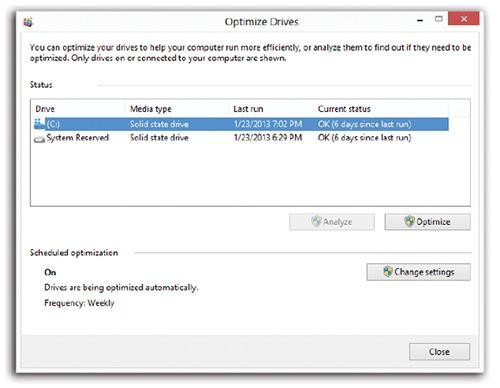
Start by opening the Disk Defragmenter main screen. You can get there via the Control Panel, or from the Start screen. Type “disk defrag” and select Settings under the search box. In the search results, clickDefragment and optimize your drives.
image
The Disk Defragmenter window opens (as shown above). From here you can either adjust the schedule or trigger defragmentation manually:
• Adjust the schedule. Click Configure schedule. Authenticate yourself if necessary. A screen appears, showing that Windows ordinarily defrags your disk late every Wednesday night (at 1 a.m., in fact). You can use the pop-up menus here to specify a Weekly, Daily, or Monthly schedule, complete with day-of-week and time-of-day options. Click OK, and then OK again.
• Manually. Click Defragment disk; the defragmenter does its work. Depending on the size of your hard disk, your processor speed, and the amount of fragmentation, it will take anywhere from several minutes to several hours.
Tip: During the defragmentation process, Windows picks up pieces of your files and temporarily sets them down in a different spot, like somebody trying to solve a jigsaw puzzle. If your hard drive is very full, defragmenting will take a lot longer than if you have some empty space available — and if there’s not enough free disk space, Windows can’t do the job completely. Before you run Disk Defragmenter, use Disk Cleanup and make as much free disk space as possible.

source : yahoo

Google Calendar: 8 Hidden Tips & Tricks.


Six Things You Didn't Know You Could Do in iMessage.


Any iPhone or iPad user knows that iMessage is an invaluable communication tool. it’s a way for you to send text messages over both the standard cellular SMS network, or the data network. It even works over WiFi when possible. Using data instead of SMS can save you money by not using a limited SMS monthly allotment.
You get other benefits when connecting to friends and families who are also on Apple devices, too. Let’s explore some of the possibilities of the feature, shall we? Basics first, then six features you probably didn’t know iMessage had.
The basicsYou may have been using iMessage for a long time without noticing its more subtle features. Here are some important things to remember when you’re communicating:
1. iMessages are blue, and regular SMS messages are green.
image
2. You may be sending “read receipts.” And by that I mean that anyone you’re communicating with over iOS will see when you’ve opened a text and read it. This can be helpful when making plans to meet up but annoying if you’re attempting to coolly ignore someone (we all do it). 
Because I am easily distracted and don’t want anyone to take personal offense to my short attention span, I turn off this feature altogether. You can do that by going to Settings → Messages.
image
From there you’ll need to turn off Send Read Receipts.
image
(While you’re there, make sure that iMessage is on and that you have the Send an SMS option enabled, so anytime WiFi isn’t available, your phone will automatically default to that).
3. You can adjust your push notifications to bring previews of texts straight to your screen. Or not. Whatever you want. In order to make these personal decisions, however, you’ll need to adjust some stuff by going to Settings → Notification Center. 
image
From there, you’ll need to go to the Include section and select Messages.
Now behold your many iMessage alert options. Here you can adjust the sound your phone makes when you get a message, whom your phone shows alerts from, and whether text messages are “previewed” on your notification screen. I choose to keep previews off to avoid any awkward situations, when someone might be peeking at my phone. Do what you prefer.
image
4. You can sync iMessage with your Mac, too. This is helpful if you plan to text at work. Not that I have ever done that.
To set it up, go to Finder → Applications → Messages.If you’re logging in for the first time, you’ll be asked to enter your Apple ID. Use the same one you’re logging in with on your iPhone.
image
Once you enter that information, it’ll display all the email addresses that will be connected to the iMessage alert center. It’ll also ask you whether you’d like to allow receipt notifications. Leave that box unchecked. You’ll thank me later.
image
From there, you’ll be brought to what your main chat base will look like. You’ll need to change your status to Available to sign on (as shown below).
image
To ensure that all your accounts are connected, you can go toMessages → Add Account. Keep in mind that you may have to use an app-specific password for Google accounts (learn about them here).
Once you’ve synced iMessage with your other messaging accounts, all your incoming IMs will filter through this program. Alerts will show up in the upper-right corner of your screen, which you’ll be able to reply to directly when you hover your mouse over the notification.
image
You’ll still need to use your iPhone to view SMS messages from people not on Apple devices. But all messages sent from people fromiMessage will now show up on your desktop Mac too. Handy.
The 6 unknown featuresiMessage on your iPhone, iPad, or iPod Touch has a lot of hidden features. Here are a few of the best:
1. You can forward messages to anyone by tapping twice on a speech bubble you want to pass on. Then tap More and check the circle next to the messages you want to send. Select the curved arrow at the lower-right corner of the screen and fill in your recipient’s number. Check out the instructions in GIF form here.
image
2. You can delete messages by following the same instructions above. But instead of tapping the curved arrow in the bottom-right corner of the screen, tap the trash icon in the lower-left corner. Here aredetailed instructions with GIFs
image
3. You can look up the definition of a word before you use it in a text. When you’re composing a message, double-tap the word. A bubble should come up asking you to select a part or all of the text. Highlight the word in question by carefully moving your finger over it. From there you’ll be given the basic cut/copy/paste options. 
image
But if you tap the arrow on the right, it’ll show you the option to eitherReplace or Define the highlighted text.
image
When you tap Define, a definition from your iPhone’s dictionary app will pop up. Turns out kittens are literally written into the definition of “cute.” Not surprised.
4. You can share entire contact cards from your address book. You can either do this by going straight to your Contacts list or just opening your last iMessage conversation with someone. TapContact in the upper-right corner of the screen.
image
Then tap the info icon on the far right.
image
From there, select Share Contact.
image
All the information in that person’s entry will be compressed and placed in a blank text message. All you need to do is fill in the recipient.
image
5. You can block contacts by following the same instructions above. But after accessing a person’sinfo page, scroll down to the very bottom and select Block this Caller.
image
6. You can see the time stamps of every individual message bubble by swiping left within a conversation.
image
You got all that? Hopefully it’ll cut out some annoying extra steps. That way you can spend less time worrying about how you’ll talk to someone and more time thinking about what you’re actually going to say. 

source : yahoo

Galaxy S5 Tips, Tricks and Secret Features.


The Galaxy S5 is the most feature-rich new phone of 2014. In true Samsung fashion, you really have to dig deep to find all the features it offers that the competition misses out on.

But if you can't afford to spend a month researching your phone to find out everything it can do, we have a big bunch of Galaxy S5 tips, tricks and secret features to help your get more out of your new phone.

We'll update this feature regularly with more tips and tricks, so let us know your favourites in the comments.

Interface

How to make your own Galaxy S5 wallpaperTips 7
You can make any image the background of your phone, within the Gallery/Photos app. To use a photo as the wallpaper, go to the Gallery app, find the photo then tap the three-pip icon at the top-right of the screen.

This will bring up a long sub-menu, in which you’ll find a ‘Set as’ option. Tap this and you’ll see options to set it as your home and lock screen wallpapers. You’ll also have the opportunity to crop the photo.

Get another interface entirelyTips 7
Custom launcher apps let you provide your phone with a completely new look, without any kind of hacking or risk of bricking your phone. These are worth checking out if you really don’t like the way TouchWiz looks or feels.

Top custom launchers to check out include Dodol Launcher, Facebook Home and Go Launcher EX. Once you’ve installed one of these, you’ll be asked which you want to use when you press the central Home button.

Select ‘Always’ when picking one of these and it’ll be used by default until you change this in the Default Applications bit of Settings.

How to install the Google Experience interface
Tips 7
One of the best custom interfaces isn’t something you’ll find on Google Play, despite it being a Google product.

You can get the Google Experience interface of the Nexus 5 on the Galaxy S5, but it needs a little bit of fiddling around. To find out what to do, check out our separate article on how to get Google Experience on the S5.


You can customise the interface font
Tips 7
TouchWiz lets you change the font used by the system, which is a way to completely alter the way your phone looks. You’ll find the font selection tool in Settings > Display > Font.

The Galaxy S5 comes with a handful of hands installed as standard, but most of you wouldn’t want to use any of them bar the standard one. There is a download button down at the bottom of this screen to let you download more, but this takes you to the Samsung Apps store, where you have to pay for fonts.

Instead, to Google Play and search for ‘fonts’. There are plenty of apps that offer reams of different fonts for free, and once the fonts are installed they will show up within the Galaxy S5’s fonts menu. Hey presto, free fronts.

Interfaces 1

Using Multi Window
Tips 5
Multi Window is a multi-tasking feature that lets you run two apps at the same time. It’s pretty cool.

First, you need to enable the feature in Settings. Multi Window has its own sub-menu.

Once enabled, hold the back key until the app tray icon pops up at the side of the display. Tap it to open the tray. Then just drag apps from it onto the screen. Not every app can be used with Multi Window, but plenty can.

Closing all running appsTips 5
There’s a very easy way to close all running apps in the Galaxy S5. Tap the multi-tasking button (the left soft key) and then tap the button with the cross – at the bottom-right of the screen. This will close all apps.

How to limit background processes to speed up the phoneTips 5
One of the ways to improve day-to-day performance when you have Developer Mode enabled is to limit the number of processes that are allowed to run in the background. To find out how to get the additional developer tools, check out the advanced section below.

You’ll find the Limit Background Processes option right down at the bottom of the Developer Options menu in Settings.

Quicken-up/get rid of animations
Tips 5
Another way to speed up the feel of your phone is to quicken-up or get rid of animated transitions between screens. Again, you’ll find this option in the Developer Options menu of Settings once you’ve enabled developer mode.


Interfaces 2

How to improve fingerprint scanner reliabilityTips 3
The fingerprint scanner of the S5 can be a bit hit and miss, but there are ways to make its reliability a bit better.

If you’re having a nightmare with the scanner, first try recalibrating it. If the 10-go calibration doesn’t end up working every time, the phone clearly isn’t getting a good enough read of your finger. The key to getting a good swipe is keeping your finger/thumb flat across the surface until the end of your swipe.

It is also worth considering that you can teach the phone a side swipe of your thumb as well as a straight-down finger swipe. So you can teach the phone the same digit from multiple angles.

How to take a screenshot
Tips 3
Want to keep a record of something on-screen? It’s easy to do with a Galaxy S5. Just press the Home button and the power button at the same time and a white screen border will flash.

This means the Galaxy S5 has saved a screen image to your photo gallery.

What is NFC useful for?

Tips 3
NFC stands for near-field communication, and it has been doing the rounds in top phones for a few years now. However, there’s still some confusion over what it is actually useful for.

Well, it hasn’t really taken off as some hoped yet, partly because Apple has to-date left it out of its phones. It was meant to become a payments standard on the high street , but it hasn’t really. There are a few schemes that support it, though.

What NFC has become is a way to sync devices easily. It is used by a fair few audio docks/portable speakers and some headphones, and Group Play uses it too. Group Play lets multiple Samsung phones share the same music track, and play it at the same time.

So, yeah, NFC isn’t exactly essential yet.

What is Google Now? Accessing and using Google NowTips 3
Google Now is the Android virtual assistant. It pre-empts information you’ll need, based on what you do with your phone, what you search for on the web, where you are and where you live. It’s a bit of a digital stalker, but it is useful.

The quickest way to access Google Now on a Galaxy S5 is to simply hold down on the Home button. You can also customise your Google Now ‘account’ by telling the service your favourite sports team, the stocks you follow and so on.

To do this, you press the magic wand button at the bottom of the Google Now screen.

Using gloves with the touchscreenTips 3
The Galaxy S5 offers a special high-sensitivity touchscreen mode that lets you use the touchscreen while you’re wearing gloves. Naturally, this makes the phone more sensitive to being operated through other layers of clothing too, so don’t just turn it on unless it’ll be of use.

You’ll find the Increase Touch Sensitivity option in the Display menu of Settings, right down at the bottom of the menu.

You can customise the LED indicator behaviour
Tips 3
You can’t choose the exact colours the Galaxy S5’s notification LED uses, but you can choose the events that fire it up. The most obvious use here is to get rid of the red charge LED signal when charging, which some people find annoying.

You’ll find is menu in Settings > Display. It’s called LED Indicator, and it lets you choose to have the LED when charging, at low battery, when there are notifications and when voice recording.

Check out KitKat easter egg
Tips 3
Every version of Android these days offers an ‘easter egg’, a little secret area for Android fans to wallow in the love of the system. It’s something that relates to the name of the particular version of Android in question, in this case KitKat.

To check it out, go to the About Phone part of the Galaxy S5’s Settings menu and tap the ‘Android version’ entry a bunch of times until the screen changes.

Interfaces 3

Switch to Cinema display mode when watching videosTips 11
One of the main reasons why we love the Galaxy S5 is its fantastic screen. However, it only really shows its true colours (no pun intended) when switched to professional photo or cinema screen modes. These are special display settings you’ll find the ‘Screen mode’ sub-menu of Settings > Display.

Cinema is the best setting for watching films, because it has very lifelike colours that give people’s faces a realistic look that you just don’t get with most other phones. It really is like watching a movie on a tiny little plasma TV.

Troubleshooting videos where the audio doesn’t playTips 11
If you’re trying to play movies you have downloaded from the internet on your phone, there’s a good chance the audio part of the file will not play. This is because the Galaxy S5 does not natively support AC3, one of the most popular audio formats for encoded digital movies.

Rather than converting the audio stream, you can just download an app that supports sorware decoding of audio and video streams. One of the most popular is MX Player.

How to enable 7.1 virtual surround sound and reverbTips 11
There are lots of ever-so-slighty hidden audio extras to be found in the Galaxy S5’s music player app, including virtual surround sound, valve simulation and room reverb.

You’ll find these Settings in the Sound Alive menu found in the Settings menu of the Samsung music player app. The effects section is down at the bottom below the EQ.

Recommended music player appsTips 11
If the inbuilt music player isn’t doing it for you, there are plenty of others to try from Google Play. Some of the most popular include DoubleTwist, Poweramp and Winamp. Check them out.

Interfaces 4

How to use the heart rate sensorTips 9
The heart rate sensor on the back of the Galaxy S5 is one of its more interesting new features, but you can’t just put your finger on it whenever you like and expect it to read your pulse.

It currently only works within the S Health app that comes pre-installed on the Galaxy S5. Open up the app and press the Heart Rate button down the bottom of the screen. This fires up the heart rate monitor screen. When reading your heart rate, don’t hold the finger over the sensor too firmly.

The heart rate sensor uses a red light that shines through your finger, and a camera that monitors the pulse caused by the circulation of your blood. Your resting heart rate is a reasonable indicator of your fitness, and a normal resting heart rate is between 50 and 90bpm.


Interfaces 5

How to take low-light photos quicker
Tips 1
The Galaxy S5 has a great low-light mode that makes taking photos at night without a flash pretty easy. However, it does take a good few seconds to take a photo.

This is because something called Picture Stabilisation is enabled. It’s an alternative to real optical image stabilisation, and merges a bunch of shots to improve low-light performance.

To turn it off, press the cog Settings icons to the bottom-left of the screen and tap the picture stabilisation entry that pops up. Without stabilisation your low-light photos will be a bit noisier.

Customising the cameras app interface
Tips 1
One of the neatest parts of the camera app is that you can choose which mode switches sit on the far-left side of the screen.  To swap them out, hold a finger down on the current mode to make the mode menu pop up.

Then just drag the switch you want to the left bar - you can keep up to three here. We recommend putting HDR there, along with perhaps the flash switch and filter selector. There’s no real need to have three, though.

Interfaces 6

Enabling developer modeTips 12
If you’re a real Android geek, you’ll want to check out Developer Mode. This is an extra menu of settings within the main Settings menu that gives you much deeper control over how the system works. Stay away if you’re a novice, though, as you could mess up your phone.

To turn on Developer Mode, go to Settings and tap the About Device entry under the System tab. In this menu there’s an entry called Build Number. Tap it seven times to turn the mode on.

After this, you’ll see a new Developer Options icon in the System tab of Settings.

Changing the runtime system from Dalvik to ARTTips 12
One of the most interesting changes you can make in the Developer Options menu is to change the runtime system to ART, from DALVIK. This changes the way your Galaxy S5 runs apps, making it compile the necessary machine code on install rather than on running an app. It makes the system run more quickly.

However, it does use a little more internal storage, and upon changing the runtime type, your Galaxy S5 will spend an age recompiling all your installed apps. It’s worth checking out if you find your phone running a little slowly, though.


source : trustedreviews


blogger template by lovebird